You can download the Heitu software using either of the methods below, or click "Update Log" on the left sidebar to download the latest beta version.
Password: xiaoheitu
When installing Heitu, make sure not to place it in directories that require write permissions, such as C:\Program Files.
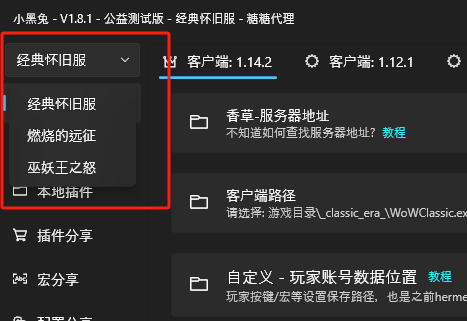
After downloading, you can select the game version in the top-left corner. The default is Classic Era.
Download the Client
After selecting the appropriate game version, click "Resource Download" in the left menu — it contains the corresponding client download links.
Set the Server Address
The server address is similar to a website URL. Only after successfully setting the server address will Heitu or the game client correctly find the game server, allowing you to start playing.
Simple Method
- The easiest way is to ask your GM for the server address. If that doesn't work, read on.
- Run your server's 1.12, 2.4.3, or 3.3.5 client once and successfully enter the game.
- Exit the game and open the
realmlist.wtffile in the game root directory. For 3.3.5 clients, therealmlist.wtffile may be located in the Client\Data\zhCN folder. - The text after
SET realmlistin the file is the server address. Be sure to remove the double quotes.
For Servers with a Shield
Servers with a shield generally hide the server address and do not create a realmlist.wtf file, instead using hidden configurations.
For servers with a shield/launcher, the shield's role is to forward network requests. The client first contacts the shield, and the shield then forwards the network data to the server. So we can try the following:
- Open the server's accompanying launcher or shield.
- Set the server address to 127.0.0.1 — this address represents the local machine.
If you still cannot log in, we can try two approaches:
- Ask the GM to obtain the server address or the method to log in using Heitu.
- Use firewall software or other packet capture tools (this step is not covered in the guide — since the server does not wish to expose its address, no corresponding tutorial will be provided) to observe the address and port interacting with the client during login. For example, if the address is 127.0.0.1 and the port is 13724, the server address can be set to: 127.0.0.1:13724.
Client Path
Follow Heitu's prompts to locate the game root directory and select the corresponding executable file.
Generally, for 1.12.1 / 2.4.3 / 3.3.5 clients, select wow.exe in the client directory.

For 1.14.2 clients, select _classic_era\WowClassic.exe in the client directory.

For 2.5.3 and 3.4.3 clients, select _classic_\WowClassic.exe in the client directory.

Unable to Launch
After completing all settings, launch the game. If you encounter issues launching, try the following:
- Disable your antivirus software.
- Try switching Tangtang Proxy to a different port.
- Completely exit Heitu, then run it as administrator.
